Article
Error 404: what it means and what to do about it
“Error 404, page not found.” You may have come across this message before while surfing the internet. An annoying message, but what does it actually mean? When you see a 404 page, the website is telling you that the page you are trying to visit no longer exists.
Error 404 is what is known as a status code. It is sent back by the server when a requested URL, or website, cannot be found. There are several variations of this message, namely:
- Error 404
- 404 Not Found
- HTTP Error 404
- Not Found
- Page Not Found
- The requested URL was not found on this server.
- The page cannot be found
- We can’t find the page you’re looking for.
Causes of a 404 error
As mentioned above, you can see this code appear when you try to visit a page that no longer exists. Say you come across an article on Google from a few years ago that you would like to read. When you click it, you get a 404 error. This means that the website’s administrator has deleted or moved that article.
But you can also get a 404 error when you type in a URL that does not exist. A simple typo is enough to trigger the error. It is also possible that the link to the URL was not created correctly.
Fortunately, the points above can be fixed too. When the content of the page still exists but has been moved, you set up a 301 redirect that forwards the incorrect URL to the correct one. Has the content been removed entirely? Then you should give the URL a 410 status code. If the link was not created correctly, ask the webmaster to fix the mistake in the link.
How do you fix the Error 404 in WordPress?
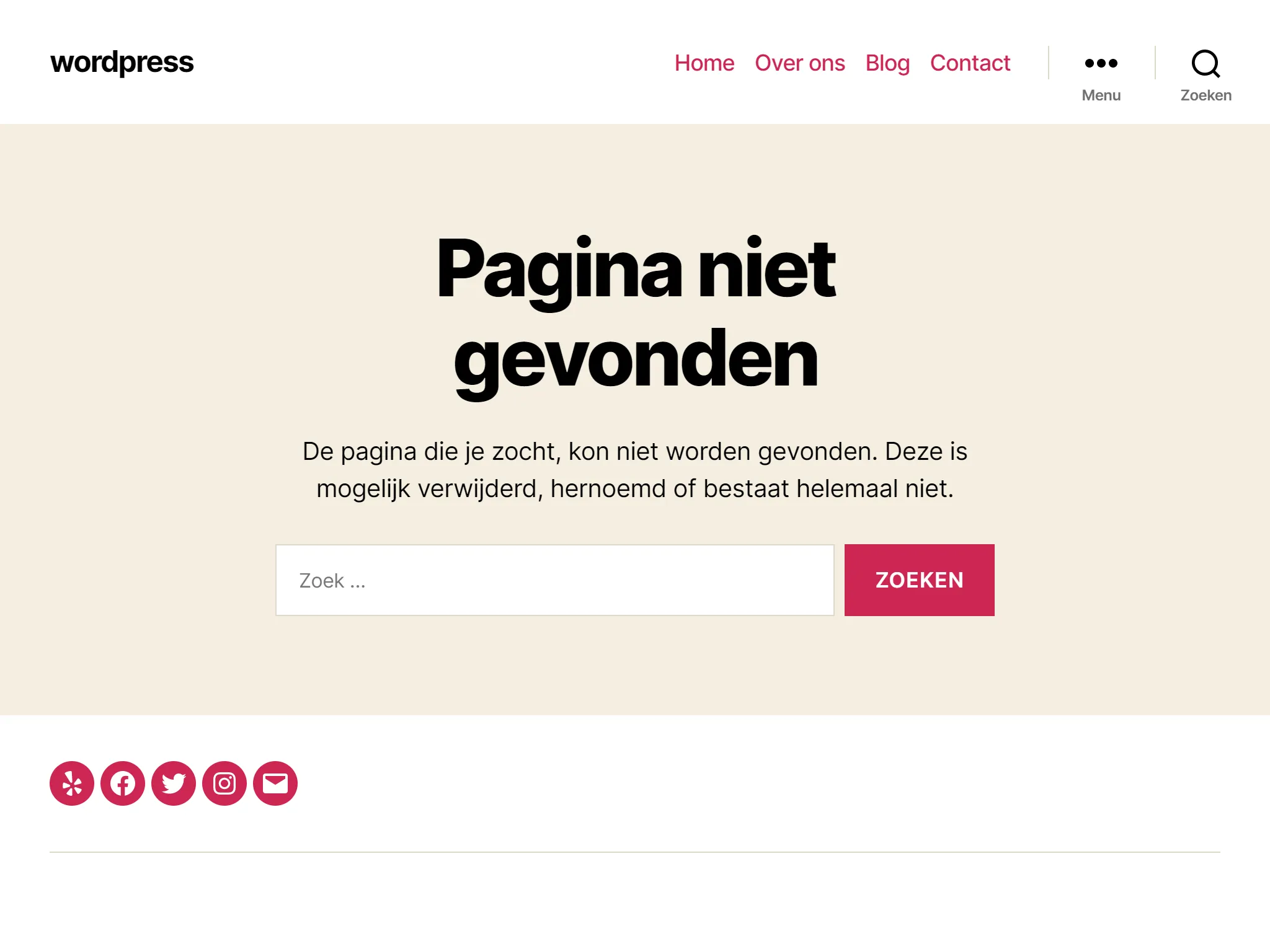
There are several different methods for fixing the Error 404 in WordPress, depending on whether the error occurs on a single page or across the entire site.
If you run into 404 errors across your entire site when opening content, the cause is probably a problem with your permalinks. The simplest way to fix this is to change the permalink settings in your WordPress dashboard.
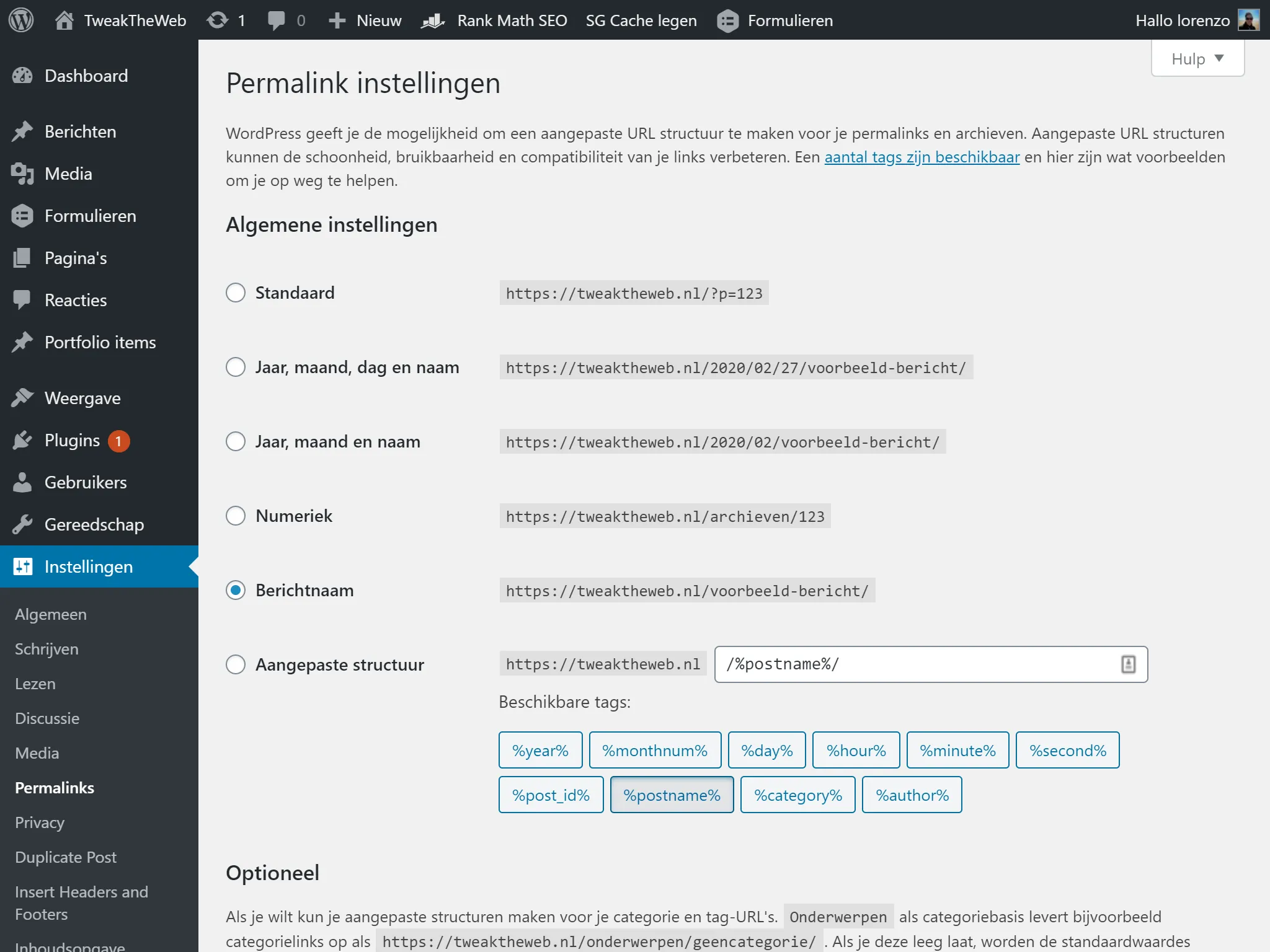
This is not difficult at all. All you need to do is go to Settings, Permalinks, and click Save Changes. You do not actually have to make any changes first: clicking Save Changes is enough on its own.
Setting up a 301 redirect for content that has been moved or renamed
If you only get the 404 error for certain content, it is probably caused by you changing the URL slug of that article, or editing the article manually, for example by deleting the article and then placing it in a new article.
When someone then tries to access that article, they keep seeing a 404 error instead of the article they expected. To fix this, the best approach is to automatically redirect everyone from the old location to the new one. That way they end up in the right place without seeing that message over and over.
This is also good for your SEO. If you move or rename an article without adding a redirect, you lose all the domain authority of the backlinks connected to that article.
Setting up a redirect in WordPress
Although WordPress always tries by default to redirect changed and/or moved content, this does not always work. For search engine optimization, it is important to set up a relevant 301 redirect.
Fortunately, you can also set up your own redirects in WordPress. This can be done with the free Redirection plugin. Once the plugin is installed, go to Tools, Redirection, and enter the URL of the 404 page in the Source URL box and the new location of the content in the Target URL box.
Create your own Error 404 page
Do you want to show visitors a user-friendly error page if they unexpectedly land on a 404 page? You can do that with the free 404page plugin:
Smart Custom 404 error page (404page)
With this plugin you can, for example, set up a search box or important links. You can also add your contact information. That way your visitors do not get a bare page, and can quickly navigate to another part of your website.
Quick question · 30 seconds
Want this running in your business?
Book a free thirty-minute intro call. Worst case, you leave with a clearer picture of what's possible.